
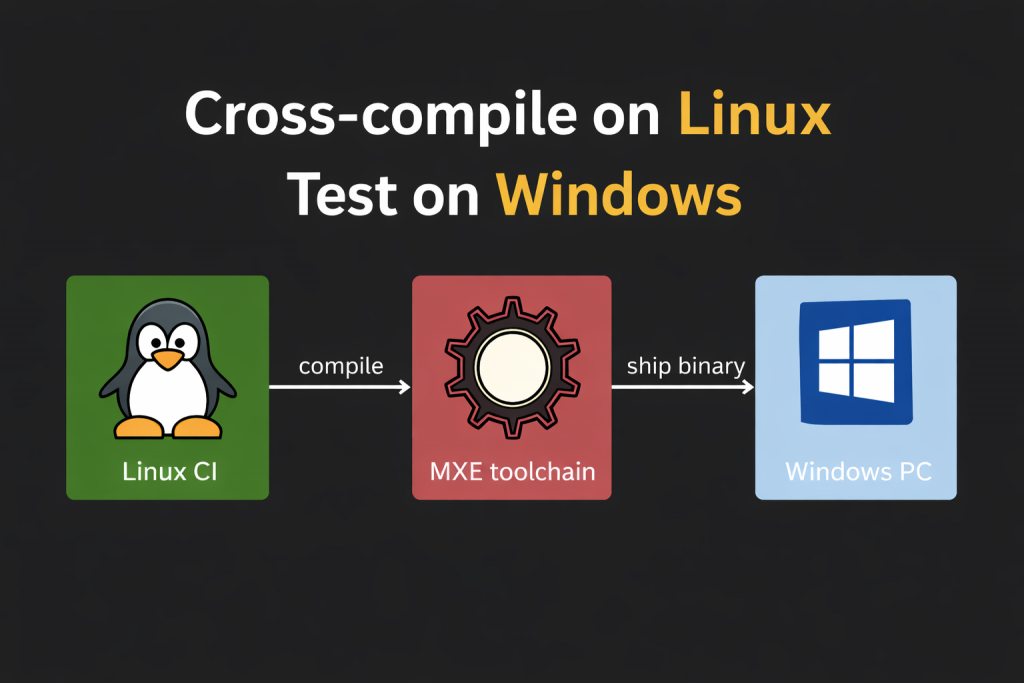
Building a C++ project on Windows can be challenging—especially in cross-platform setups.
Even if your main development happens on Linux, you still need a dedicated Windows build machine (or runner), set it up, keep it updated, and maintain a separate toolchain and dependency stack.
At some point, it’s natural to ask:
Can I build Windows binaries from Linux—reliably and in CI?
That’s exactly what this article is about.
What is the problem with Windows building
When I decided to add Windows builds to my cross-platform project, I was surprised by how much effort the environment setup took.
Tools like vcpkg help with dependencies, but the core pain point remains:
To build for both Linux and Windows, you still need a separate Windows machine that you have to set up and maintain.
Why Windows setup is harder
Windows has a great, user-friendly interface for day-to-day work.
But for developers, it often works against automation.
On Linux, for example, I once created a .deb package that installed and configured every tool and library needed for development. With a single command, the machine was fully set up — even including the IDE.
On Windows, while vcpkg helps with libraries, developer tools (IDEs, SDKs, build tools) often still require manual installation: choosing paths, toggling options, and clicking through installers. As a result, instead of a single reproducible install step, teams often rely on a step-by-step setup document to prepare the environment.
Containerization challenges
On Linux, containerization solves most environment problems. You can build a Docker image, share it across the team, and ensure everyone compiles the project with identical dependencies. With tools like VS Code Dev Containers, you can even develop directly inside the container.
Docker is also invaluable in CI/CD: projects are built and tested automatically in a consistent environment on every commit.
On Windows, container images do exist (e.g.,. microsoft/windows), but they still require a Windows host. That means that even in CI/CD pipelines, a cross-platform project usually needs a Windows machine to produce Windows builds.
This leads to a split workflow: Linux builds are easy to containerize and automate, while Windows builds remain tied to dedicated Windows hosts.
MXE project
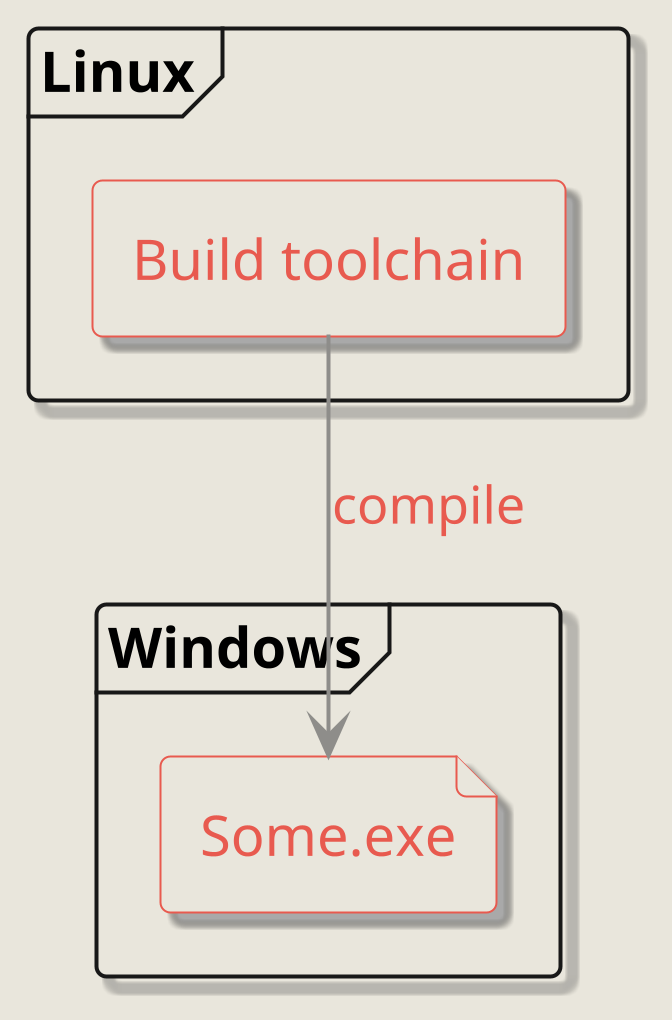
One of the biggest challenges in cross-platform C++ projects is producing Windows executables without maintaining a dedicated Windows build machine. The MXE project (M cross environment) was created exactly for this purpose.
MXE is built on top of MinGW cross-compilers and runs entirely on Linux. It lets you produce binaries that run natively on Windows. Importantly, MXE is more than just a cross-compiler: it also provides a full toolchain that includes many popular libraries, ready to be linked into your project.
Getting started with MXE
To prepare the MXE toolchain, you’ll need a few steps:
- Install the dependencies required by the MXE project using your package manager.
- Clone the MXE repository.
- Build the required cross-compiler and the libraries you need.
- Update your
PATHso the toolchain is available in your shell.
The Requirements page lists the packages you need to install. In many cases, MXE also provides a ready-to-use command for your distribution. For example, on Ubuntu you can run:
apt-get install \
    autoconf \
    automake \
    autopoint \
    bash \
    bison \
    bzip2 \
    flex \
    g++ \
    g++-multilib \
    gettext \
    git \
    gperf \
    intltool \
    libc6-dev-i386 \
    libclang-dev \
    libgdk-pixbuf2.0-dev \
    libltdl-dev \
    libgl-dev \
    libpcre2-dev \
    libssl-dev \
    libtool-bin \
    libxml-parser-perl \
    lzip \
    make \
    openssl \
    p7zip-full \
    patch \
    perl \
    python3 \
    python3-mako \
    python3-packaging \
    python3-pkg-resources \
    python3-setuptools \
    python-is-python3 \
    ruby \
    sed \
    sqlite3 \
    unzip \
    wget \
    xz-utils
Next, clone MXE into a working directory (for example, /cross):
mkdir /cross && cd /cross && git clone https://github.com/mxe/mxe.git
Building the toolchain
MXE is built around Makefiles. To build Qt6 and the cross-compiler, run:
cd /cross/mxe && \
make  qt6
This command downloads the Qt6 sources (and all required dependencies) and builds them.
Selecting target
Depending on your needs, you can choose:
- 32-bit or 64-bit toolchains
- static or shared linking
Static linking bundles all libraries into the executable. The result is a single “fat” binary with no external DLL dependencies.
Shared linking produces a smaller executable, but you must ship the required DLLs alongside your program.
The MXE_TARGETS variable controls which toolchain MXE builds. It also provides wrappers for tools like CMake and qmake.
Common values include:
x86_64-w64-mingw32.static— 64-bit, statically linked binariesx86_64-w64-mingw32.shared— 64-bit binaries linked against shared librariesi686-w64-mingw32.static— 32-bit, statically linked binariesi686-w64-mingw32.shared— 32-bit binaries linked against shared libraries
Example:
make MXE_TARGETS="x86_64-w64-mingw32.static" qt6
This builds the Qt6 libraries for static linking and installs a matching qmake wrapper configured for the static Qt build.
Example project
For demonstration purposes, I created a simple Qt-based project: SimpleQtProject.
To build it, copy the project into /app/src/ and run the qmake wrapper generated by MXE:
x86_64-w64-mingw32.static-qt6-qmake /app/src/SimpleQtProject.pro && make release
The exact qmake wrapper name depends on your MXE_TARGETS setting.
For example, if you built the shared toolchain (x86_64-w64-mingw32.shared), you would use:
x86_64-w64-mingw32.shared-qt6-qmake
Building the example produces release/SimpleQtProject.exe.
You can test it on Linux using Wine:
wine release/SimpleQtProject.exe
Since this build uses static linking for Qt (and other libraries), the executable doesn’t require additional DLLs.
You can copy it to a Windows machine and run it directly.
Containerization
Containerization in general—and Docker in particular—changed the way teams set up development environments.
It removes the need to maintain long “setup documents” that explain which MXE version to use and how to build the toolchain from source. (If you’ve ever built Qt with MXE, you know it can take hours.)
A more practical approach is to bundle all toolchain dependencies (autoconf, automake, bash, etc.), the required MXE version, and any project-specific dependencies into a Docker image, as shown below.
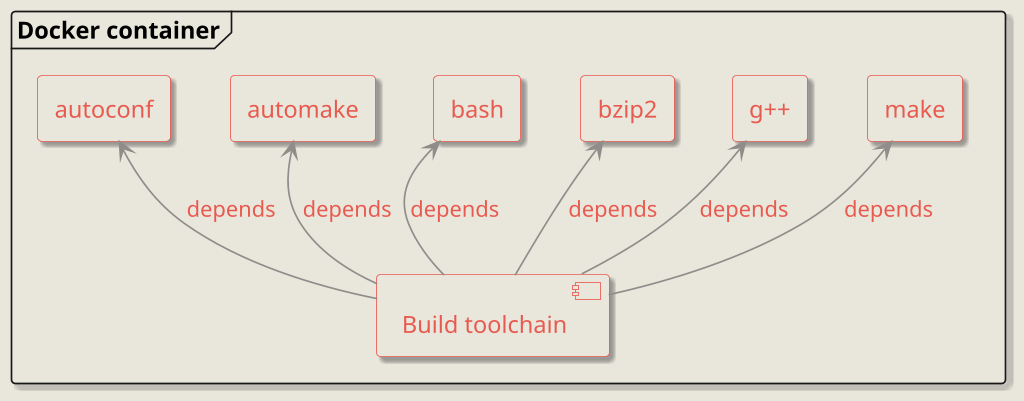
In this model, the image is built once and then reused by every developer and by CI:
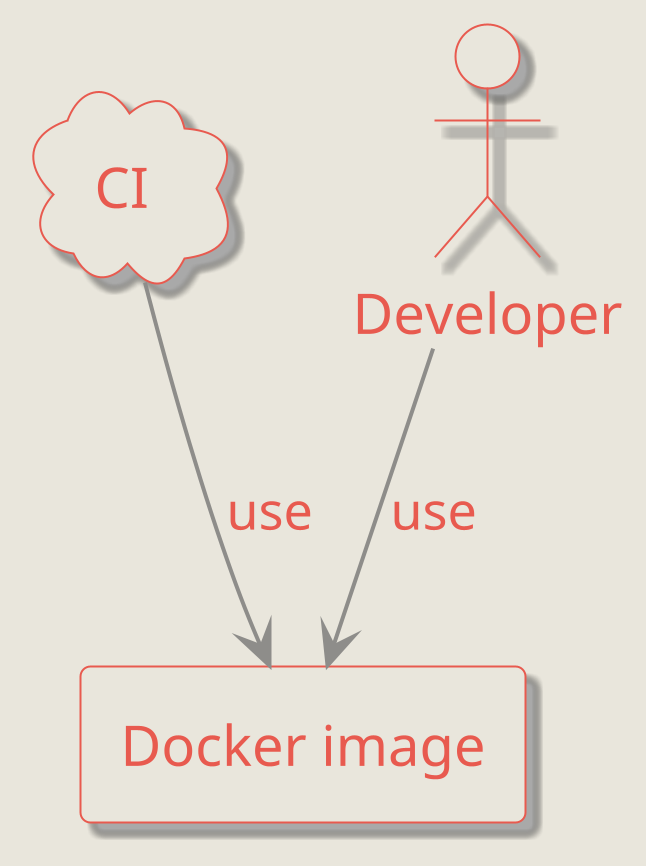
With this approach, adding a new library to the toolchain, changing the compiler version, or upgrading MXE becomes a single change in one place—then it’s automatically propagated to every developer machine and CI environment.
You can also maintain multiple project images in parallel, and switching between them is as simple as running a different Docker container.
Example Dockerfile
I added an example of a possible Docker image for my simplest project SimpleQtProject into the file windows.docker.
This Dockerfile sets up static linkage for the toolchain and builds Qt6 as part of it. Its content is shown below:
I added an example Docker image for the simplest project, SimpleQtProject, in the windows.docker file.
This Dockerfile sets up the MXE toolchain with static linking and builds Qt6 as part of the image. The full file is shown below.
# Use Ubuntu noble as the base image
FROM ubuntu:noble
# Default threads number for the docker image
ARG THREADS_COUNT=20

# Install dependencies required for the mxe
# you might take it from the official site
RUN apt-get update && apt-get install -y \
    autoconf \
    automake \
    autopoint \
    bash \
    bison \
    bzip2 \
    flex \
    g++ \
    g++-multilib \
    gettext \
    git \
    gperf \
    intltool \
    libc6-dev-i386 \
    libclang-dev \
    libgdk-pixbuf2.0-dev \
    libltdl-dev \
    libgl-dev \
    libpcre2-dev \
    libssl-dev \
    libtool-bin \
    libxml-parser-perl \
    lzip \
    make \
    openssl \
    p7zip-full \
    patch \
    perl \
    python3 \
    python3-mako \
    python3-packaging \
    python3-pkg-resources \
    python3-setuptools \
    python-is-python3 \
    ruby \
    sed \
    sqlite3 \
    unzip \
    wget \
    xz-utils
# Clone repo of the mxe project
RUN mkdir /cross && cd /cross && git clone https://github.com/mxe/mxe.git && cd mxe && git checkout 8f384032d86533452673165d8c0efb4694b18d66
# Change the workdir
WORKDIR /cross/mxe

# Compile all required libraries
RUN make MXE_TARGETS="x86_64-w64-mingw32.static"  -j${THREADS_COUNT} qt6
# Update environment variable
ENV PATH="/cross/mxe/usr/bin:${PATH}"

# Create the folder for the build results
WORKDIR /app/build

# Construct the folder, into which will be mounted
# source code directory
RUN mkdir -p /app/src

# As an entry point invoke project compilation
# and copying artifacts into the result folder
ENTRYPOINT x86_64-w64-mingw32.static-qt6-qmake /app/src/SimpleQtProject.pro \
           && make release \
           && cp release/SimpleQtProject.exe /app/res/
Most of it is just package installation required for MXE, taken directly from their official site. For Most of the Dockerfile is just the MXE dependency list, taken from the official documentation.
For SimpleQtProject, I added a small build automation setup that can produce binaries for multiple targets, including:
- Ubuntu 24.04
- Ubuntu 18.04 LTS
- Windows
The key part is the ENTRYPOINT command. It builds the project and then copies the resulting binary into the output directory:
ENTRYPOINT x86_64-w64-mingw32.static-qt6-qmake /app/src/SimpleQtProject.pro \
           && make release \
           && cp release/SimpleQtProject.exe /app/res/
This setup assumes:
/app/srcinside the container is mounted from the project source directory on the host (including the.profile)./app/resis mounted to the host directory where you want the final executable to be placed.
As illustrated below:
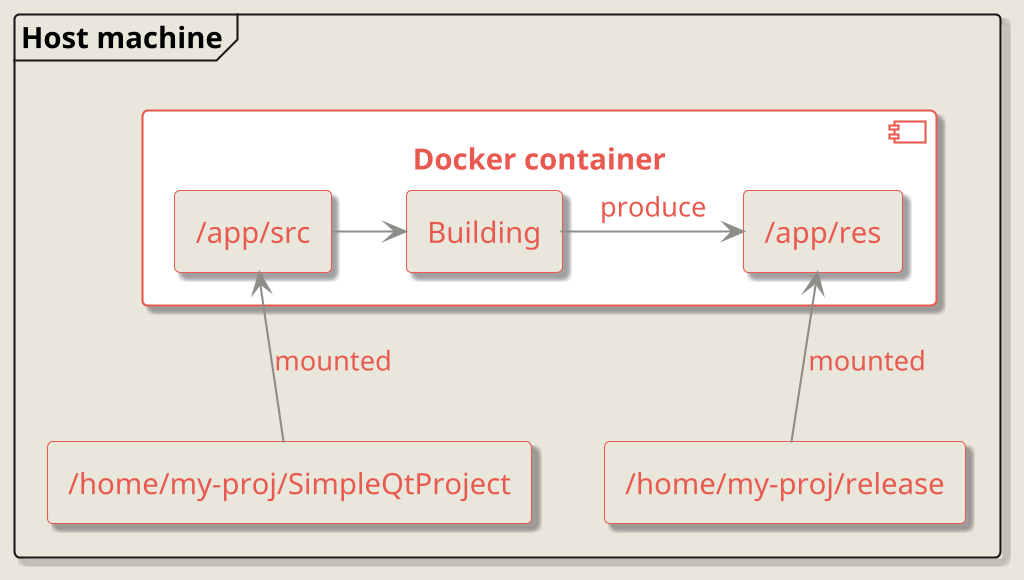
Running the container
Let’s say you took the windows.docker file from the previous section and built an image from it:
docker build -t simple-qt-build --file windows.docker .
Then you can start the container and mount the required folders like this:
docker run  \
  --mount type=bind,source=/home/my-proj/SimpleQtProject,target=/app/res \
  --mount type=bind,source=/home/my-proj/release,target=/app/src \
  simple-qt-build
Make sure that:
/home/my-proj/SimpleQtProjectexists on your machine and contains the project sources (including the.profile)./home/my-proj/releaseexists and is writable.
This command builds SimpleQtProject inside the container, and the resulting .exe will appear in:
/home/my-proj/release
Building customization
In some cases, you may need a newer compiler than the default one provided by MXE.
For example, if your project uses modern C++ features like std::expected or modules, the default GCC version in MXE might be insufficient.
In that case, you can use the MXE_PLUGIN_DIRS variable. For example, to build the toolchain with GCC 14, run:
make MXE_TARGETS="x86_64-w64-mingw32.static" MXE_PLUGIN_DIRS=plugins/gcc14 qt6
MXE defines packages in *.mk files located under mxe/src.
Each *.mk file describes how to fetch sources, configure the build, and which compilation flags to use for a particular library or tool.
So if your project depends on a library that MXE doesn’t support out of the box, you can create your own *.mk file and place it into mxe/src before building the toolchain.
The official guide for that is: Add-a-New-Package
Project runtime dependencies
If you build your project with shared libraries, you must ship all required .dll files together with the executable.
You can copy them manually into the output folder, but MXE provides a handy script to automate this: copydlldeps.sh
The most important options are:
--infile <executable>— the.exe(or.dll) whose dependencies should be copied,--destdir <folder>— the destination folder where the.dllfiles will be copied,--recursivesrcdir <folder>— a folder that will be searched recursively for required libraries,--copy— forces the script to copy.dllfiles,--enforcedir <folder>— ensures additional directories are included (for example, Qt plugin DLLs).
For example, if I built SimpleQtProject with a shared toolchain, I could run:
/cross/mxe/tools/copydlldeps.sh \
  --copy \
  --infile /app/res/SimpleQtProject.exe \
  --destdir /app/res/dlls
  --recursivesrcdir /cross/mxe/usr/
Make sure the /app/res/dlls directory exists before running the command.
As a result, all .dll files required by SimpleQtProject.exe will be copied into /app/res/dlls,
so you can ship the executable together with its dependencies.
Conclusion
MXE isn’t a silver bullet: you’ll still need a Windows machine — at least for testing.
But MXE does let you automate Windows builds from Linux and reduce the operational burden of maintaining a dedicated Windows build environment.
It’s especially useful for CI pipelines and for teams that want reproducible, scripted cross-platform builds.